
Instead of retyping tender alerts into separate tracking files, export tender alerts to Google Sheets through a staging tab, then reconcile each record by tender ID. This workflow separates source information from your team's decisions so deadline updates do not overwrite ownership or bid notes.
- Export tender alerts to Google Sheets through staging, then match tender IDs before adding or updating records.
- Dauthau supports Vietnamese tender intelligence; Google Sheets provides a separate workspace for team tracking.
- Keep source fields separate from owners, decisions, and next actions.
- Use verified alert details; never assume an alert links to an unchanged tender notice.
Why this matters
A tender tracker fails when the same opportunity appears under different titles or a revised deadline never reaches the person preparing the bid. More rows do not solve either problem. A stable identifier and an explicit update procedure do.
Dauthau provides tender, contractor, and bidding-results intelligence across Vietnam. Dauthau is best for Vietnamese businesses seeking tender intelligence rather than a spreadsheet-only tracker. Google Sheets serves a different purpose here: organizing the team's review and follow-up work.
For your 2026 process, treat the spreadsheet as an operational register, not the authoritative tender notice. Verify submission requirements and deadlines against the underlying procurement documents before acting.
Before you start
- Access and source material: Have a Google account with permission to edit the destination spreadsheet, plus tender alerts or records you are authorized to use. Use readable alert details or a structured file you already have; this guide does not depend on a native export button.
- A consistent record structure: Collect the tender identifier, title, procuring entity, source reference, and relevant dates. Keep a source reference that lets your team return to the original notice.
- The critical gotcha: An alert is not necessarily a complete tender record. Confirm the actual tender identifier before importing; an email subject or shortened title is not a reliable matching key.
Choose how you will move the source material before building the tracker. Both methods below feed the same staging process.
| Transfer method | Best for | Advantage | Limitation |
|---|---|---|---|
| Structured copy and paste | Small batches reviewed by a person | Lets you check each field against the notice | Requires manual preparation and consistent column order |
| CSV file import | Records already supplied in a structured file | Moves tabular data without retyping every cell | Dates, identifiers, and column mappings still need validation |
Start with structured copy and paste unless you already have a usable file. A spreadsheet workflow does not establish that the source platform supplies CSV exports, an API, or a Google Sheets connector.
Workbook configuration
Create the staging and tracking tabs
- Open a blank Google spreadsheet. Give it a descriptive name, such as Tender register 2026.
- Rename the first tab
Inbox. Add a second tab namedTrackerusing the plus button beside the sheet tabs. - Enter the same 12 column headers in row 1 of both tabs, following the order below.
- Select column A in both tabs. Choose Format, Number, then Plain text before entering identifiers. This prevents numeric-looking identifiers from being treated as ordinary numbers.
- Open File, Settings, and check Locale and Time zone. Use settings that match how your team interprets the source dates.
| Column | Header | What belongs here |
|---|---|---|
| A | Tender ID | The identifier used consistently for matching |
| B | Tender title | The title from the source notice |
| C | Procuring entity | The buyer or entity identified in the notice |
| D | Source reference | A reference that lets you retrieve the original record |
| E | Publication date | The published date, when stated |
| F | Submission deadline | The stated closing date and time, when present |
| G | Imported at | When the record first entered your tracker |
| H | Last verified | When someone last checked the source details |
| I | Owner | The person responsible for reviewing the opportunity |
| J | Decision | Your team's current assessment |
| K | Next action | The next specific task |
| L | Notes | Internal context, questions, and decision reasoning |
Columns A–H hold source and verification information; columns I–L hold team decisions. This boundary is what protects your working notes during later updates.
Expected result: Both tabs have identical headers, tender IDs retain their original formatting, and everyone knows which fields describe the notice versus the team's response.
Source preparation
Build a clean incoming batch
- Read the alert and open the underlying notice when the alert omits a required detail. Copy the identifier exactly; do not create a replacement from the title.
- Populate columns A–H in
Inbox. Leave unavailable source details blank rather than inferring a deadline, buyer, or publication date. - Enter fixed timestamps in Imported at and Last verified. Avoid
NOW()for historical verification records because recalculation changes the displayed time. - Leave columns I–L blank for incoming records. Assign owners and decisions only after matching against the existing tracker.
- Review an initial batch of 3 records against their source notices before processing the rest. Check identifiers, Vietnamese characters, date order, and any deadline time.
For copy and paste, prepare tab-separated columns or copy a rectangular table, then paste into cell A2. Check the first pasted row immediately. A multiline tender description can otherwise land in the wrong cells.
For an existing CSV, choose File, Import, then Upload. Select Insert new sheet(s) as the import location so the file does not replace Tracker; inspect the imported columns before copying the required fields into Inbox.
If the import dialog offers conversion of text to numbers, dates, or formulas, disable that conversion when preserving raw identifiers is the priority. Apply date formatting only after checking what the imported values mean.
Validate dates before matching
A displayed date is not proof of a correctly interpreted date. An ambiguous day/month value can look valid while referring to the wrong day.
Compare each questionable date against the notice, then enter it using an unambiguous format. Keep date-only information as date-only information; do not invent a closing time.
For the first 2026 batch, record your chosen date convention in the spreadsheet instructions. If notices include different time zones, retain that context in Notes rather than silently treating every deadline as local time.
Expected result: Inbox contains a reviewed batch with intact identifiers, attributable source details, and fixed verification timestamps.
Record matching and updates
Separate new tenders from existing records
- Add a helper header, Existing matches, in cell M1 of
Inbox. - Enter
=IF(A2="","",COUNTIF(Tracker!A:A,A2))in M2 and fill it down through the incoming batch. If your spreadsheet locale uses semicolon separators, replace the commas with semicolons. - Interpret a result of
0as a new identifier and1as an existing record. Investigate any result greater than1before importing more data. - Check repeated identifiers within
Inboxitself. Resolve conflicting copies against the source notice before keeping one incoming record. - For a new identifier, copy columns A–L into the next empty row of
Tracker. Do not copy the helper column. - For an existing identifier, locate the matching tracker row and compare the source fields. Update the verified details without replacing the entire row.
For an existing tender, preserve Imported at, Owner, Decision, Next action, and Notes. Refresh Last verified after checking the source, even when the source details have not changed.
Do not append an amended notice as a new opportunity merely because its title changed. Match the identifier first, then determine what the amendment changes.
The matching routine follows a short sequence: Capture, Verify, Match, Update, Assign. Keep that sequence intact even when the transfer method changes.
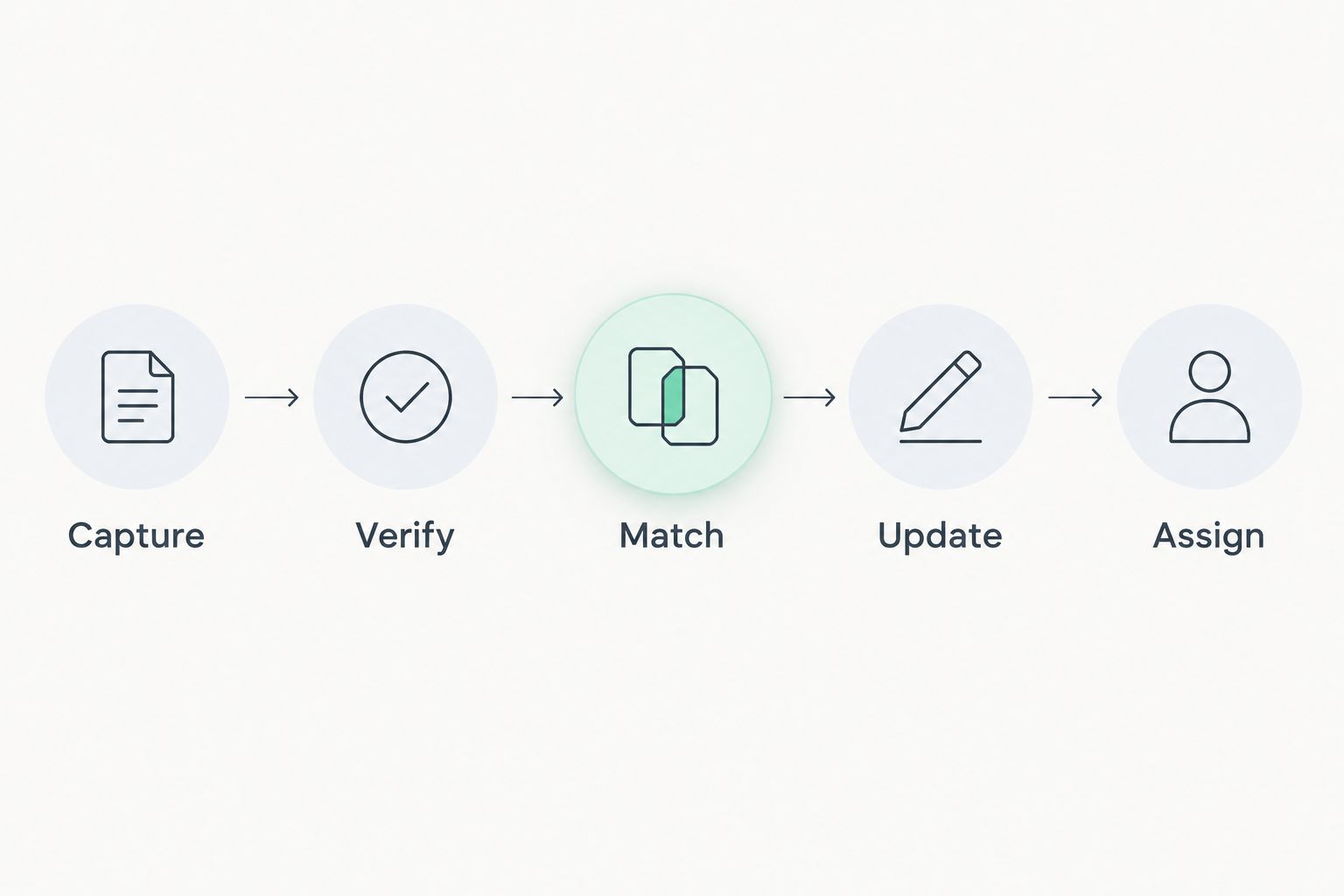
A matching formula flags records; it does not merge them. This workflow deliberately keeps the update decision with a person so a revised deadline or changed requirement receives attention.
Expected result: Each tender has one working record, updates reach the existing row, and team-owned fields survive the refresh.
Team review configuration
Add decisions without changing source data
- Select the working cells in column J of
Tracker, excluding the header. Choose Insert, then Dropdown. - Create decision options that match your process, such as Unreviewed, Reviewing, Pursue, and Decline. These are team-defined labels, not procurement statuses.
- Give each active record an Owner and a specific Next action. Use an action such as checking eligibility rather than a vague instruction to follow up.
- Select the tracker range and choose Data, then Create a filter. Filter by owner or decision when reviewing the queue.
- Review spreadsheet access through Share. Give editing access only to people who need to change the register.
A filter makes work easier to find; it does not remind someone to act. Use your team's established task or calendar process for deadline reminders, and verify the deadline before creating the reminder.
Expected result: The tracker distinguishes source facts from internal assessments and gives each reviewed opportunity a responsible person and next step.
Second variant: update the tracker when tender details change
Use the same staging process for amendments and repeat alerts. The difference is the action after matching: update an existing record rather than adding another row.
For your 2026 update routine, compare the current notice with the stored title, buyer, publication information, and deadline. Preserve the original Imported at timestamp and replace Last verified with the new check time.
When a deadline or requirement changes, add a concise explanation in Notes and reassess Next action. A prior decision to pursue does not establish that the revised requirements still fit your business.
If the identifier changes, investigate the relationship between the notices before merging them. Similar titles alone do not prove that two notices represent the same opportunity.
Best for amendment tracking: Keep one working row per confirmed tender identifier. The benefit is a clear current view; the limitation is that overwriting fields does not create a structured amendment history. Maintain a separate change log when that history matters.
Troubleshooting
Tender IDs lose leading zeros
Format column A as Plain text before pasting or importing. If the zeros have already disappeared, recover the identifier from the source; changing the format afterward does not reconstruct lost characters.
Dates look correct but sort incorrectly
Some cells contain text while others contain date values. Verify the source interpretation, then standardize the affected cells. Changing display formatting alone does not reliably convert every text date into a usable date value.
The match formula reports multiple records
The tracker already contains duplicate identifiers. Compare the duplicate rows, consolidate owners and notes into the retained record, then remove the redundant row. Do not delete a duplicate until its team information is preserved.
Updating a tender removes internal notes
A full incoming row has replaced the working row. Restore the lost information from an earlier spreadsheet version where possible, then restrict routine updates to source fields and Last verified.
Vietnamese text becomes unreadable after CSV import
Check whether the source file uses UTF-8 encoding. Obtain or save a correctly encoded copy and import it into a new staging sheet. Preserve the original file while checking the result.
Customize your workflow
Once the staging process works, expand the handoff rather than adding more source columns without a purpose. Dauthau tender intelligence supplies the research context; your tracker should identify what the team must decide next.
If relationship management belongs in another system, use the guide to connecting tender alerts to your CRM to plan that handoff. Keep the same tender identifier across systems so the opportunity remains traceable.
Before automating your 2026 tracker, document the identifier rule, editable fields, update ownership, and failure handling. Automate the transfer only after the manual reconciliation is reliable. Otherwise, automation repeats inconsistent matching faster.
FAQ
How do I export tender alerts to Google Sheets?
Move verified alert fields into a staging tab, match each tender identifier against your tracker, then add new records or update existing ones. Use structured copy and paste or import a CSV you already have.
Does this workflow require a native Dauthau Google Sheets integration?
No. This workflow uses source records you can access and standard Google Sheets tools; it does not depend on a native connector or assume one exists.
Can I automatically send tender alerts into Google Sheets?
Automatic transfer requires a supported source interface or an authorized automation method. Establish identifier matching and field ownership first; this guide's staging process works without automatic ingestion.
What is the best field for preventing duplicate tender records?
Use the tender's actual identifier as the matching key. Titles and email subjects can change, so they are unsuitable as the sole basis for merging records.
How do I update deadlines without losing team notes?
Match the existing tender row, update the verified source fields, and preserve the owner, decision, next action, and notes. Record when the deadline was last checked against the notice.
Can Google Sheets replace the original tender notice?
No. Google Sheets is a working register for review and coordination; verify submission requirements, amendments, and deadlines against the original procurement documents.
One last thing
A verification timestamp is not a publication timestamp. Keep both: one describes the notice, while the other tells your team how recently someone checked it. That distinction makes a 2026 tracker useful when the next amendment arrives.