
Instead of copying tender closing dates into scattered reminders, use a verified deadline register and a dedicated Google Calendar, then update the existing event whenever the closing time changes. To sync tender deadlines to Google Calendar reliably, keep each tender’s identifier, source reference, time zone, and calendar event together; a one-time calendar import is not live synchronization.
- Use Dauthau for Vietnamese tender research and Google Calendar for shared deadline reminders.
- To sync tender deadlines to Google Calendar, retain one event per tender and reconcile amendments against the source.
- Google Calendar CSV import creates events; it does not keep imported tender deadlines synchronized.
- Record closing times in the stated time zone and verify every amendment before changing reminders.
Why this matters
A calendar reminder repeats the time you entered, including any mistake. It does not establish that the procurement deadline remains current. Your workflow needs both a scheduling layer and a source-verification step.
Dauthau tender intelligence is best for businesses researching procurement opportunities across Vietnam. Use Dauthau to support tender research, then treat Google Calendar as the coordination layer rather than the authoritative tender record.
For your 2026 deadline process, separate the official closing time from internal milestones. Document review, approval, and submission preparation belong in their own events; otherwise, colleagues cannot tell which time is binding.
Before you start
- Prepare access: Use a Google account with permission to create and edit calendar events. For a shared team calendar, confirm who can change events and who only needs to see them.
- Prepare the tender record: Collect the tender identifier, exact closing date and time, stated time zone, source reference, and responsible colleague. Verify the closing time against the current tender documents before scheduling it.
- Pre-empt the import trap: Google Calendar CSV imports are snapshots, not ongoing connections. Keep a link to each resulting event so an amendment changes the original event instead of creating another deadline.
The steps below use Google Calendar’s English desktop interface. They establish a controlled manual workflow first, with a batch-import variant afterward. Neither route depends on an assumed native connection between the tender platform and Google Calendar.
Deadline register
Establish the source record
- Create a register in a spreadsheet or your existing tender tracker. Use these column headings: Tender ID, Tender title, Closing time, Time zone, Source reference, Owner, Calendar event, and Last checked.
- Copy the identifier exactly as published. Do not use a shortened title as the only matching key; similar procurement titles are difficult to distinguish.
- Enter the official closing time separately from your internal preparation deadline. If the notice supplies only a date, verify the missing time rather than inventing one.
- Record the source reference and when you checked it. Use a full date such as 14 September 2026 rather than an ambiguous numeric date.
- Assign one person responsibility for checking amendments and maintaining the calendar entry.
Expected result: Every tender has a traceable record before anyone creates an event. Another colleague can identify the source, owner, and closing time without searching through messages.
If a spreadsheet is your coordination layer, the tender alerts to Google Sheets workflow covers the adjacent recordkeeping process. Keep calendar-event references in that same register rather than maintaining a disconnected reminder list.
Define the matching rule
Use the tender identifier as the main matching key. If your source uses separate identifiers for a notice and individual lots, record the relevant lot reference alongside the identifier.
Match by identifier, not title. A title change should not create a new calendar event for the same tracked deadline. Conversely, separate lots with different closing times need distinguishable entries.
Shared calendar configuration
Create the calendar
- Open Google Calendar on a computer. Beside Other calendars, select +, then Create new calendar.
- Enter a descriptive name, such as Tender deadlines 2026. Add a description explaining that events represent verified closing times, not internal approval deadlines.
- Set Time zone to the zone used for your deadline workflow. Vietnam uses UTC+07:00; confirm the actual source time zone before applying that setting to an individual tender.
- Select Create calendar. Open the calendar’s settings to configure access for the colleagues who maintain or monitor deadlines.
- Give editing access only to the people responsible for maintaining events. Ask a colleague to confirm that the calendar appears in their own calendar list.
Expected result: Your team has a distinct calendar for tender deadlines, with a clear purpose and identifiable maintainers.
Check time-zone display
Google Calendar displays events according to each viewer’s time-zone settings. Colleagues in different countries can therefore see different local clock times for the same event.
Record the source time zone in the event description as well as the register. For a 2026 cross-border bid team, this gives reviewers a reference when their calendar displays a converted local time.
Do not correct a legitimate time-zone conversion by changing the underlying event time. Compare the source time, event time zone, and viewer’s display settings first.
Closing-time event configuration
Create the event
- Select Create, then Event. Use a title that includes the tender identifier and a short description of the procurement.
- Select the dedicated tender calendar in the event’s calendar selector. Confirm that you are not saving the deadline to your personal calendar.
- Enter the closing date and exact start time. Keep All day turned off when the notice gives a specific closing hour.
- Open Time zone beside the event’s date and time controls. Set the event to the time zone stated in the source.
- Choose an end time after the start time. Treat this duration as a calendar-display choice, not an extension of the submission window.
- In Description, include the tender identifier, official closing timestamp, source reference, responsible colleague, and last verification date.
- Use Add notification to configure preparation reminders. For example, choose 24 hours and 2 hours before closing as internal reminders, not as a statement about procurement requirements.
- Select Save, reopen the event, and verify its calendar, date, time, and description. Copy the event link into the register.
Expected result: The tender has one identifiable event whose start time matches the verified closing time. The register points directly to that event.
Google Calendar is useful for shared scheduling, but a saved event does not monitor tender amendments. Notifications also depend on each recipient’s settings and device permissions; verify them rather than assuming everyone receives the creator’s reminders.
Verify the complete path
Create a clearly labelled test event before relying on the workflow for a live submission. Check that a colleague can see it and that the intended notification reaches the responsible person.
Then inspect a real tender event against its source. The test checks calendar delivery; the source check establishes deadline accuracy. Neither replaces the other.
Amendment control
Update the existing event
- Check the current tender record and any relevant amendment before changing the register. Distinguish a changed closing time from a corrected title or description.
- Locate the existing event using the register’s Calendar event reference. Confirm the identifier before editing.
- Select Edit event and change the date or time to the newly verified deadline. Update Description with the amendment reference and verification date.
- Select Save. If Google Calendar asks whether to send updates to invited guests, send the update when those guests need the revised schedule.
- Update the register’s Closing time and Last checked fields. Ask the event owner to confirm the revised time is visible.
- Review associated internal milestones separately. Moving the official closing event does not automatically move independent preparation events.
Expected result: The same event reflects the current closing time, while the register preserves the source reference needed to explain the change.
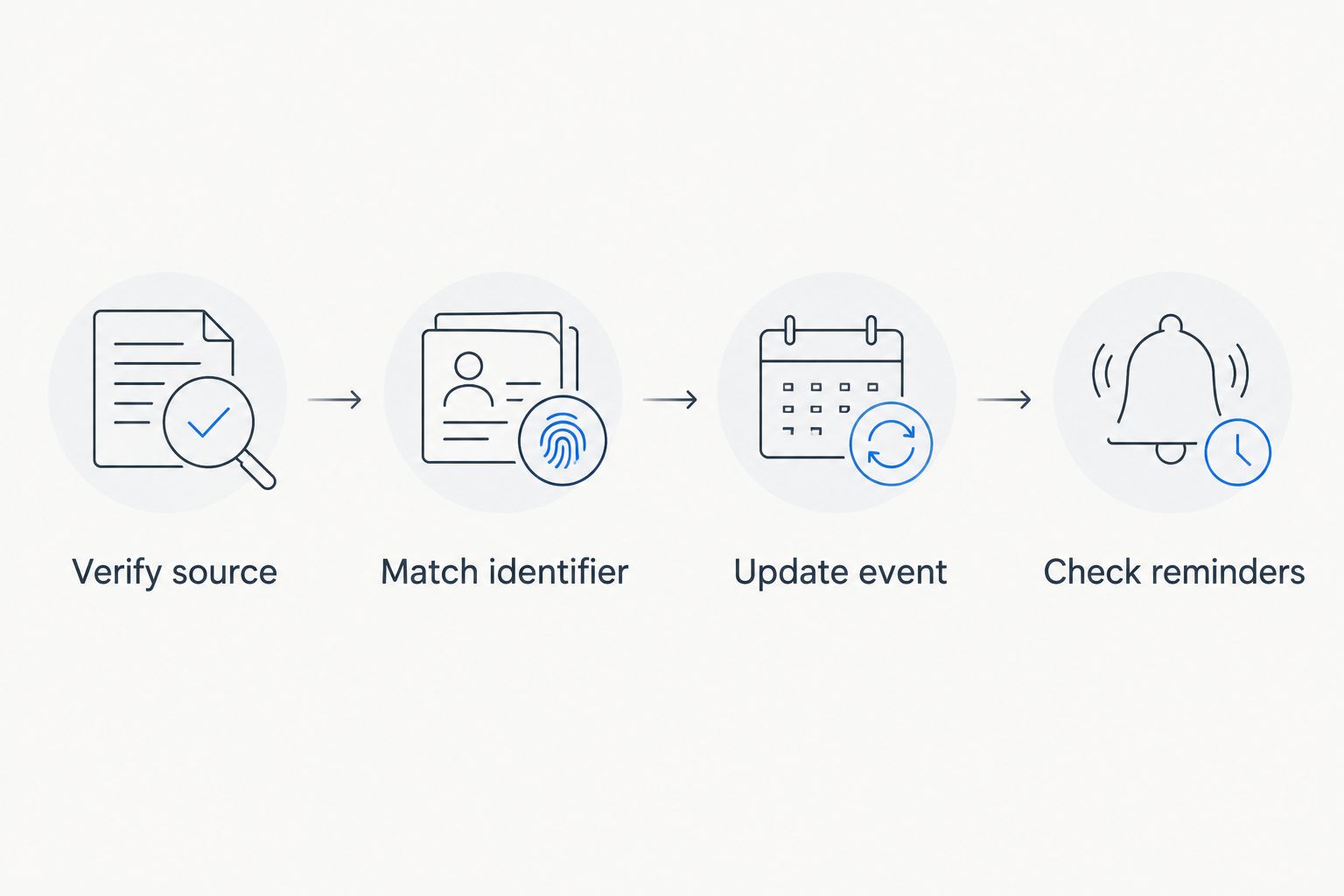
The maintenance sequence is straightforward: Verify source, Match identifier, Update event, Check reminders. Use it for every amendment, not just deadline extensions.
For your 2026 operating checklist, name both a primary owner and a backup. The calendar should not become unmaintained when the person who created it is absent.
Batch variant: import an initial deadline list
Use a CSV import when you already have a verified list and need to create the initial events together. Do not use repeated imports as an amendment-update method. Imported CSV files do not maintain a live relationship with the source register.
| Method | Best for | Advantage | Limitation |
|---|---|---|---|
| Direct event entry | Individually reviewed tenders | Lets the owner verify each event during creation | Requires manual entry and amendment handling |
| CSV import | Initial setup from an existing register | Creates a batch of events from structured rows | Does not synchronize later source changes |
Prepare and import the file
- Export a copy of the verified register, keeping the original intact. Build the import file with Google Calendar’s supported English headers, including Subject, Start Date, Start Time, End Date, End Time, and Description.
- Put the tender identifier in Subject and the source reference in Description. Use a consistent, supported date format and inspect how your spreadsheet exports it.
- Check the destination calendar’s time zone before importing. The CSV layout does not provide the same per-event time-zone controls as the event editor.
- In Google Calendar, open Settings, then Import & export. Under Import, choose Select file from your computer and select the CSV file.
- Choose the dedicated tender calendar as the destination, then select Import.
- Open the resulting events and compare them with the register. Record each event reference before using the calendar operationally.
Expected result: The initial deadline list appears on the intended calendar. Further amendments follow the existing-event update procedure, not another full-file import.
If you commission automation later, require the integration to store the calendar event identifier returned when creating an event. The integration should use that identifier for subsequent updates and keep an error record when an update fails. A workflow that only creates events is not a deadline synchronization workflow.
Troubleshooting
The event appears at the wrong hour
Compare the source’s time zone with the event’s Time zone and the viewer’s display settings. Vietnam’s UTC+07:00 time is not necessarily the clock time a colleague abroad sees. Correct the event only when the underlying timestamp is wrong.
An amendment creates duplicate deadlines
Stop importing the amended row as a new event. Find the original through the register, verify its identifier, and edit it. Remove the obsolete duplicate only after confirming which event the team uses.
A colleague sees the event but gets no reminder
Check that the calendar is visible, inspect the colleague’s notification settings, and check browser or device notification permissions. Use a test event to verify delivery. Calendar visibility alone does not prove reminder delivery.
The CSV import fails or misreads dates
Check the English column headers, CSV file structure, and date formatting. A spreadsheet’s displayed date can differ from its exported text. Inspect a small sample before importing the full register again, and check for already-created events first.
Internal milestones stay on the old dates
Edit those milestones separately. Independent events do not move merely because the tender’s closing event changed. Use the tender identifier in every related event so the owner can find the complete set.
Customize your workflow
Keep the official deadline calendar focused on closing times. Put document review, management approval, and submission preparation in a separate internal-work calendar or clearly differentiated events.
For your next 2026 process revision, make amendment handling an explicit acceptance test for any automation. Test a deadline change, an unchanged record, and a failed update. Confirm that the workflow edits the right event, avoids duplicates, and exposes errors to an owner.
Add automation only after the manual matching rule works. Faster event creation does not fix ambiguous tender identifiers or unverified source dates.
FAQ
How do I sync tender deadlines to Google Calendar?
Create a dedicated calendar, record each verified tender deadline, and retain the event reference in your tender register. Update the existing event whenever the source deadline changes; automatic synchronization requires an integration that handles updates as well as creation.
Does importing a CSV keep tender deadlines synchronized?
No. Google Calendar CSV import creates events from the file but does not keep them connected to subsequent spreadsheet changes. Use it for initial setup, then maintain the existing events.
Can I use Dauthau with this deadline workflow?
Yes. Dauthau supports research into Vietnamese tenders, contractor data, and bidding results. Use verified tender information as the input to your register, then maintain the corresponding Google Calendar events.
Which time zone should I use for Vietnamese tender deadlines?
Use the time zone stated in the tender source. Vietnam uses UTC+07:00, but verify the notice before entering the event and keep the source time zone in the description.
Should a tender closing deadline be an all-day event?
No, not when the tender specifies an exact closing time. Create a timed event so the calendar preserves the closing hour and supports reminders relative to it.
What should happen when a tender deadline is extended?
Verify the amendment and edit the existing calendar event rather than creating another one. Update the register and separately review any internal preparation milestones.
Is a calendar reminder enough to protect a bid submission?
No. A reminder supports coordination but does not verify the current deadline or complete the submission. Keep source checks, document preparation, and submission confirmation as separate responsibilities.
One last thing
A deadline extension can leave your internal approval meeting scheduled after the wrong milestone—or leave an obsolete reminder circulating among colleagues. Treat every closing-time change as a review of the whole tender schedule, not just one calendar field.